Broadband help
For queries about your TalkTalk broadband service.
- Subscribe to RSS Feed
- Mark Topic as New
- Mark Topic as Read
- Float this Topic for Current User
- Bookmark
- Subscribe
- Mute
- Printer Friendly Page
WiFi security settings messages and devices offline

on 15-07-2023 03:23 PM - last edited on 04-08-2023 03:16 PM by Gliwmaeden2


Hello,
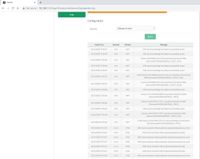
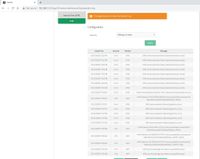
Please can someone tell me what the message 'WiFi security settings have been successfully saved' in my router log actually means i.e. what is the router doing, and why? The message tends to appear multiple, usually 4, times in quick succession, and I get several groups of messages on most days.
My reason for asking is I've been struggling with my wireless printers frequently going offline at seemingly random times. Internet searches show printer-offline issues are widely reported with various printer models, but none of the suggested fixes work for me. Furthermore my problem is affecting two printers (different models) at varying times. So I decided to take a closer look at what is happening in my case...
I ran a batch script which pings my printer IP addresses every 5 minutes over several days to find out when the problem occurs. By cross-referencing the results against my router's log, I've concluded that my problem is somehow linked to the 'WiFi security...' messages in the router log.
To clarify, my 'WiFi security...' messages are usually followed in the log by all 2.4GHz wifi devices - or less frequently all 5GHz wifi devices - automatically disconnecting and reconnecting from the network, and therefore becoming un-pingable for a short time. This is acceptably brief, and is NOT the problem.
The problem IS:
- one or both of my printers becomes permanently un-pingable (ping returns 'unreachable' response) from any device (like my test laptop on wifi, or wired, or my mobile phone) which disconnects and reconnects to the network, AFTER the 'WiFi security...' messages appear. Subsequent pings continue to fail despite the fact that, according to the log, both test device and printer are successfully connected to the network;
- devices that stay connected to the network after the 'WiFi security...' messages, continue to see the printer until the next time they reconnect;
- the only way I have found to make the printer ping-able again from all devices is to disconnect/reconnect the printer itself.
As said above, the 'WiFi security...' messages are normally followed in the log by all wifi devices on one frequency disconnecting and reconnecting. In practice, this can lead to a scenario where the printer becomes un-pingable after one set of 'WiFi security...' messages, and then becomes pingable again several hours later, through being automatically disconnected and reconnected following another set of 'WiFi security...' messages.
In hindsight, my problems will have have seemed random during daily use because firstly, my newer printer can switch between 2.4/5GHz, and secondly, my main laptop running Windows 11 reconnects to the network every time it wakes from sleep. My testing has eliminated these random elements and my printer-offline problems coincide with the 'WiFi security...' messages every time.
So to help me determine where the root cause lies and how to fix it, please can someone tell me what the router is doing when these messages appear, and why do they happen when they do (what is the trigger)?
[ The back of my router says its a Sagemcom FAST 5364-3.T8. The firmware version is SG4K100174. ]
Many thanks in advance.
- Mark as New
- Bookmark
- Subscribe
- Mute
- Subscribe to RSS Feed
- Highlight
- Report Inappropriate Content

on 17-10-2025 08:47 AM
@KeithFrench Thank you so much for all your help.
- Mark as New
- Bookmark
- Subscribe
- Mute
- Subscribe to RSS Feed
- Highlight
- Report Inappropriate Content

on 17-10-2025 08:45 AM
I looked that up on HP's website and I was sure it said it was 2.4GHz only. Still no worries, send me some more stuff when it plays up again.
- Mark as New
- Bookmark
- Subscribe
- Mute
- Subscribe to RSS Feed
- Highlight
- Report Inappropriate Content
on 16-10-2025 04:31 PM
Hi @KeithFrench
Thanks for the further info.
Just to re-iterate my point from Monday (below), my Envy printer IS dual-band. The router says the printer is connected on 5GHz right now; the printer does give a printout of network status and right now it says the signal strength is excellent - I suppose none of this is surprising as the printer is in the same room as the router.
I don't know when or how often the printer switches to 2.4GHz or changes channels within 5GHz, or how to find that out without any logs.
I'll be happy to send a network connection status printout and another snapshot when something goes wrong again. Trouble is, its infrequent and I only find out after-the-event when I try to print and it doesn't work, rather than noticing any particular network problems that I can capture in real-time.
I'll monitor for a while and see if I can capture anything.
Thanks.
- Mark as New
- Bookmark
- Subscribe
- Mute
- Subscribe to RSS Feed
- Highlight
- Report Inappropriate Content
on 16-10-2025 11:30 AM
Hi @papd63 let us know if you still assistance and refer to the last post from KeithFrench.
- Mark as New
- Bookmark
- Subscribe
- Mute
- Subscribe to RSS Feed
- Highlight
- Report Inappropriate Content
on 15-10-2025 11:00 AM
Hi @papd63
WiFi Optimisation is now allowing the use of DFS channels (I can explain more if you want), which is a big improvement for the 5GHz band. Instead of restricting the channel range to 36 - 48, it will also allow the use of channels 52 - 140. In fact, it can also use the non-DFS range above, up to approximately channel 165. Your 5Ghz band was using channel 58 in the information that you supplied to me, well inside the DFS range. However, there are a couple of trade-offs here:-
- All DFS channels require the router to scan these channels for 60 seconds before it starts to advertise that the network is available for use. Therefore, swapping to a DFS channel will always mean a break in service of at least a minute; however, for channels 120 – 128, this time is increased to 10 minutes!
- Not all 5GHz capable devices can use these DFS channels & will therefore be forced to use the 2.4GHz band.
Your printer, though, will not be affected by this, as it only operates in the 2.4GHz band.
When the Wi-Fi Scanner snapshot was taken, I assume that everything was working OK, as you have an excellent signal strength & no Wi-Fi interference on either band.
Could you please take another snapshot (no need to worry about the other details) when the network is bad? I used to have an HP Envy printer some years ago; I think it could produce a printout of the network connection status. Does your one allow this? If so, when things are bad, please can you do that & scan it back in as a PDF and zip that up & send it to me with the new snapshot file?
Thanks.
- Mark as New
- Bookmark
- Subscribe
- Mute
- Subscribe to RSS Feed
- Highlight
- Report Inappropriate Content
on 14-10-2025 10:38 AM
Thanks for the ZIP file. I will get back to you later today, hopefully.
- Mark as New
- Bookmark
- Subscribe
- Mute
- Subscribe to RSS Feed
- Highlight
- Report Inappropriate Content
on 13-10-2025 05:48 PM - last edited on 14-10-2025 10:37 AM by KeithFrench
Hi @KeithFrench
Thanks for offering support, and for sending the guide. I ran the Wi-Fi Scanner on a Windows 11 laptop, please find the results attached (and see PM to follow).
Please note that my printer does support dual-band. Nevertheless interference is quite likely, I have a lot of neighbours 🙂
Thanks
- Mark as New
- Bookmark
- Subscribe
- Mute
- Subscribe to RSS Feed
- Highlight
- Report Inappropriate Content
on 10-10-2025 10:34 AM
Hi @papd63
Your printer only supports the 2.4GHz WiFi band, which, as I said previously, suffers much more Wi-Fi interference generally than the 5GHz band. However, I have no idea of the state of your 2.4GHz band until I see the results from a Wi-Fi analyser.
Do not worry about interpreting the results; I will do that for you. I will send a PM to you that contains a link to a guide of mine on Wi-Fi interference. It is quite lengthy (approximately 30 pages), but you will likely only need to review three or four pages in total. Initially, look at the section called "Are you suffering from interference – prove it first". This is the first link in the table of contents. This section includes full details of free Wi-Fi analysers that I recommend for Windows, Windows phone, Android and Apple operating systems. However, I have no way of testing the Apple product. Select the analyser of your choice & my guide explains how to use it.
If you are using Wi-Fi Scanner, please attach the zip file to this thread. As soon as I have downloaded it, I will remove the attachment from your post to preserve your privacy.
With all other analysers, please follow my instructions below.
Please collect the required screenshots and include them in your reply.
Please post the screenshots to me in a PM (to protect your privacy), which I have requested in my guide. No photos, please, as they can be difficult to read, because the text can get out of focus when zoomed in. Please ensure that the analyser window is maximised (if Windows) before taking the screenshots & uploading them via the "Insert Photos" button (in a mobile browser it's the picture icon) on the post editor's toolbar with the Size parameter set to Large.
- Mark as New
- Bookmark
- Subscribe
- Mute
- Subscribe to RSS Feed
- Highlight
- Report Inappropriate Content
on 09-10-2025 11:12 PM
Hi @KeithFrench
The device going offline is an HP Envy 6032e printer.
Superficially, it looked like the same problem I had in 2023 with the same printer (and a second one which I no longer use). It has happened a few times in recent weeks, after not happening at all since wifi optimisation was turned off in 2023.
I haven't done any further investigation because it looked like the same problem as before and there are no logs to inspect.
So yes I'd be grateful for any help or suggestions please.
Thank you.
- Mark as New
- Bookmark
- Subscribe
- Mute
- Subscribe to RSS Feed
- Highlight
- Report Inappropriate Content
on 09-10-2025 10:32 AM
Hi @papd63
To be fair, Wi-Fi optimisation has improved a lot since the early days (I never used to be a fan of this feature). Its improved algorithm handles the 2.4GHz band better & now allows more of the 5GHz channels to be used. Most of the cases I have investigated for some time now, sure channels are changing, etc, but this is often Wi-Fi Optimisation doing its job in a very overcrowded Wi-Fi band.
In your specific case, what make/model of devices are going offline?
Slow speed, intermittent dropouts, breaks in the signal or no signal on some or all devices or no internet access might be caused by Wi-Fi interference from other local networks, which can also lead to a permanent reduction in speed. No ISP can be responsible for your local environment; this is mainly a byproduct of the popularity of Wi-Fi.
Generally speaking, the 2.4GHz band suffers a lot more from interference than the much faster 5GHz band, but the 2.4GHz band can sometimes have a better range; however, this all depends on your local area.
In other words, I offer a free, impartial analysis of your Wi-Fi network and will try to help you optimise your Wi-Fi connection. The next stage involves sending out a guide to help you get me some important diagnostic results so that I can analyse them for you and recommend changes to your router configuration to solve them.
I only send this out to people who request it.
The information below is provided by TalkTalk. For confirmation, please contact @Lorrainef, the manager of the TalkTalk support staff on this forum.
KeithFrench is one of our valued Community Stars and can help with a range of issues related to wireless and networking. At times, he may ask you to send him test results via a Private Message to help analyse/diagnose an issue. Although Keith does not work for TalkTalk, he very kindly shares his time and knowledge to help others.
If you need further help or if we need to take any details such as personal information about your account, like phone numbers, account numbers, etc, one of the TalkTalk team will jump in and help out.
- Mark as New
- Bookmark
- Subscribe
- Mute
- Subscribe to RSS Feed
- Highlight
- Report Inappropriate Content

on 09-10-2025 08:01 AM
@Gliwmaeden2 thank you. We will wait for @KeithFrench to try and assist.
- Mark as New
- Bookmark
- Subscribe
- Mute
- Subscribe to RSS Feed
- Highlight
- Report Inappropriate Content

on 09-10-2025 12:02 AM
You can't disable wifi optimisation yourself, @papd63 - the Sagemcom will always pick what it "thinks" is most suitable.
You need @KeithFrench's attention for understanding what might be going on here.
From the 29th of March our TalkTalk Community will move to peer-to-peer support and the TalkTalk team will no longer be here to support with queries. Don’t worry we still have plenty of ways to reach out if you need to speak to TalkTalk directly. For more details check out the link in the post at the top of any forum message board.
- Mark as New
- Bookmark
- Subscribe
- Mute
- Subscribe to RSS Feed
- Highlight
- Report Inappropriate Content
on 08-10-2025 11:34 PM
Thank you @Gliwmaeden2 for the speedy reply
I'd appreciate any suggestions on how to move forward please? For example:
- Is there a way to get the logs working again so I can confirm if its the same problem as before?
- If staff can no longer disable wifi optimisation, can I do it myself, or is there some other way to achieve the same result?
I'm happy to revert firmware to earlier versions if possible and if it would help.
Thank you.
- Mark as New
- Bookmark
- Subscribe
- Mute
- Subscribe to RSS Feed
- Highlight
- Report Inappropriate Content
on 08-10-2025 10:38 PM
Staff can no longer disable wifi optimisation, @papd63.
They changed the policy over a year ago. It was a Talktalk business decision.
From the 29th of March our TalkTalk Community will move to peer-to-peer support and the TalkTalk team will no longer be here to support with queries. Don’t worry we still have plenty of ways to reach out if you need to speak to TalkTalk directly. For more details check out the link in the post at the top of any forum message board.
- Mark as New
- Bookmark
- Subscribe
- Mute
- Subscribe to RSS Feed
- Highlight
- Report Inappropriate Content
on 08-10-2025 08:25 PM
Hello,
I seem to have a recurrence of the problem originally reported in this thread, wherein my printers are intermittently becoming unreachable (unpingable) and need to be restarted.
Please can someone re-perform the previous resolution i.e. disabling wifi optimisation on my line? I fear this change may have reverted at some point recently.
(I can't definitely confirm it's exactly the same behaviour as before because I no longer have any system logs - which I think is a separate, known problem).
Thank you,
Paul
- Mark as New
- Bookmark
- Subscribe
- Mute
- Subscribe to RSS Feed
- Highlight
- Report Inappropriate Content

on 20-11-2023 02:40 PM
Hi papd63,
Glad to hear that it seems to be OK now. We tried disabling wifi optimisation as it was felt that it could be related to the log entries, which does seem to have been the case
Chris
Chris, Community Team
Our latest Blog l Share your Ideas l Service Status l Help with your Service l Community Stars l Set your preferences
- Mark as New
- Bookmark
- Subscribe
- Mute
- Subscribe to RSS Feed
- Highlight
- Report Inappropriate Content
on 19-11-2023 12:13 PM
Hi Chris, I'm pleased to report that I haven't seen any instances of the 'Wifi security...' messages since October 20th, and consequently my printers have remained online!
Whilst there was no-one at home for a significant part of that period, we've been home for long enough to conclude that things have improved, presumably as a result of the change that you said was made.
Please can you give me a bit more detail on what was changed? If it was a configuration setting then I'd like to ensure it stays set, and check for it if I see the problem again; if it was a code fix then I'd like to know if it will stay fixed if the firmware is updated?
Many thanks.
Paul
- Mark as New
- Bookmark
- Subscribe
- Mute
- Subscribe to RSS Feed
- Highlight
- Report Inappropriate Content
on 30-10-2023 07:33 AM
Thanks for the information Paul, I'll pass it on to our product team.
Chris
Chris, Community Team
Our latest Blog l Share your Ideas l Service Status l Help with your Service l Community Stars l Set your preferences
- Mark as New
- Bookmark
- Subscribe
- Mute
- Subscribe to RSS Feed
- Highlight
- Report Inappropriate Content
on 27-10-2023 05:42 PM
- Mark as New
- Bookmark
- Subscribe
- Mute
- Subscribe to RSS Feed
- Highlight
- Report Inappropriate Content
on 27-10-2023 07:46 AM
Hi papd63,
We've made a change, could you please monitor and let me know if it's made any difference to the security settings entry in the logs
Thanks
Chris
Chris, Community Team
Our latest Blog l Share your Ideas l Service Status l Help with your Service l Community Stars l Set your preferences
- Mark as New
- Bookmark
- Subscribe
- Mute
- Subscribe to RSS Feed
- Highlight
- Report Inappropriate Content
